
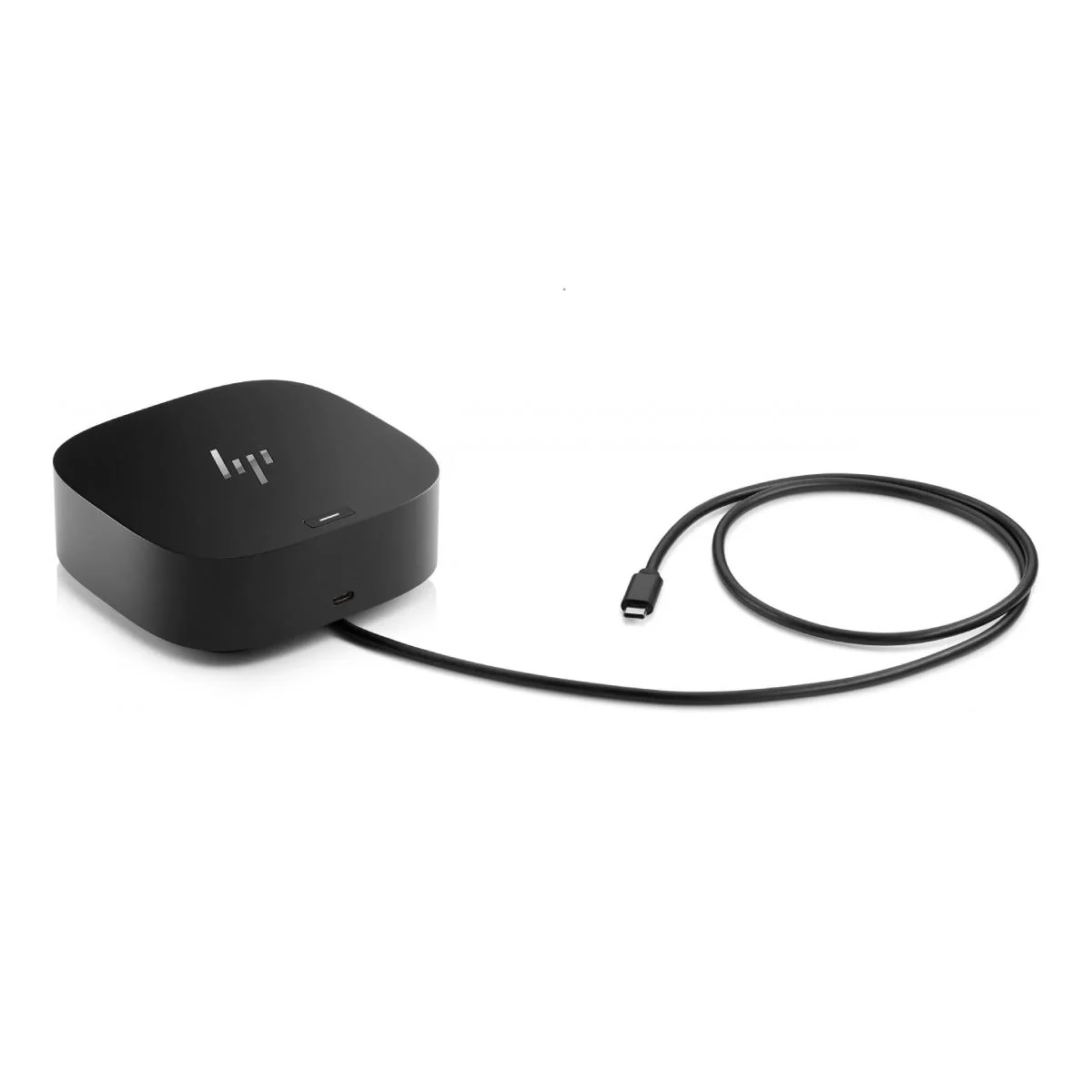
HP USB-C Dock G5: one cable for your whole desk
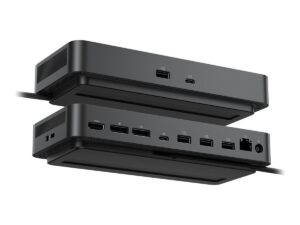
Connect your laptop to your displays, network and accessories with a single cable. The HP USB-C Dock G5 links everything to any compatible USB-C laptop, so you start work without hunting for ports. As a result, your desk stays clear, and your setup takes seconds. In addition, the dock charges your laptop at up to 100W, so you need no separate charger at your desk.
Why choose this dock?
- One-cable setup: You plug in once, so every device connects at the same time.
- Two external displays: Two DisplayPort outputs and one HDMI 2.0 output let you extend your workspace across screens.
- Wired network: The Gigabit Ethernet port gives you a stable connection, especially when Wi-Fi is crowded.
- Four USB-A ports: Two sit on the side for quick access, while two sit at the rear for permanent devices.
- Front USB-C port: It carries data and delivers 15W of power, so you can charge a phone or accessory.
- Compact body: The dock takes up about 5 by 5 inches of desk space, which suits crowded desks.
- Easy upkeep: HP also sends firmware updates through the connected laptop, so you need no extra tools.
Which laptops work with this dock?
The dock works with HP laptops, MacBooks and other laptops that support USB-C charging and video output. It also supports Windows 10, Windows 11 and macOS. However, Thunderbolt laptops run the dock at USB-C speeds, and the number and resolution of displays depend on your laptop. Not sure yours qualifies? Send us your laptop model, and we will confirm before you order. For full technical details, visit [HP’s product page].
Specifications
- Brand: HP
- Model: HP USB-C Dock G5
- Part number: 5TW10AA
- Power to laptop: Up to 100W
- Video outputs: 2 DisplayPort, 1 HDMI 2.0
- Network: 1 Gigabit Ethernet (RJ-45)
- USB-A ports: 4 USB 3.0 (2 side, 2 rear)
- USB-C port: 1 front port, data and 15W output
- Audio: 1 combo headphone and microphone jack
- Security: Cable lock slot
- Colour: Black
- Weight: About 0.7 kg
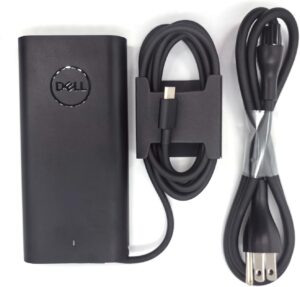
- In the box: Dock, AC adapter, power cord, quick start guide
Tips for setting up your dock
First, connect the power adapter to the dock before you plug in your laptop. Next, plug the USB-C cable into the laptop port that supports charging and video. Also, use the rear ports for devices that stay in place, because this keeps your desk tidy. Finally, update your laptop’s drivers and firmware, so the dock runs at its best.