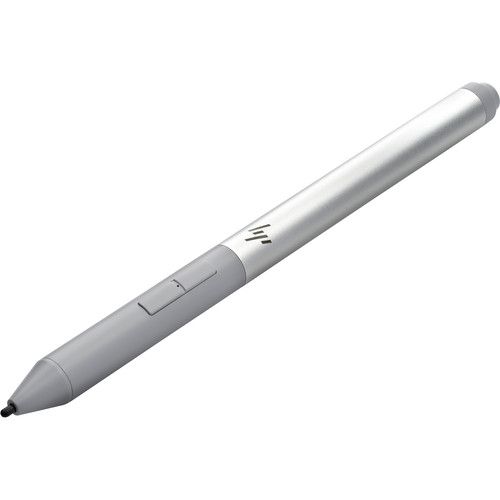
HP Rechargeable Active Pen G3
Write, draw, and navigate directly on your laptop screen. The HP Active Pen G3 is a rechargeable digital pen made for natural note-taking, sketching, and marking up documents, so you work faster than with a mouse. In addition, its low tip pressure and 4,096 pressure levels give you smooth, accurate lines.
Why choose this pen?
- Natural writing feel: A low activation force means you press lightly, so writing and drawing feel effortless.
- 4,096 pressure levels: Fine control lets you vary line thickness, which suits sketching and annotation.
- Rechargeable battery: A built-in Li-ion battery lasts up to 7 days of normal use, so you do not buy batteries.
- Programmable buttons: Two side buttons plus a top button let you erase, highlight, and launch apps with the included software.
- Never lose it: Magnetic attachment on supported models and a digital proximity alert warn you if you leave the pen behind.
- Charging status light: LEDs show battery and pairing status, so you always know where you stand.
Which laptops work with the HP Active Pen G3? (verify)
This pen works only with selected HP business laptops. These are the HP EliteBook x360 1030 G3 and G4, the EliteBook x360 1040 G5 and G6, the Elite x2 1013 G3, the Elite x2 G4, and the ZBook Studio x360 G5. However, it does not work with all HP touchscreen laptops, so please check your exact model before you buy. Send us your laptop model, and we will confirm compatibility before you order. You can also check HP’s official support site.
Specifications
- Brand: HP
- Model: HP Rechargeable Active Pen G3
- Part number: 6SG43AA
- Buttons: 3
- Pressure levels: 4,096
- Battery: Rechargeable Li-ion, up to 7 days of normal use
- Charging: USB-C, using your device’s USB-C adapter or the included USB-C to USB-A cable
- Requirement: AES 2.0 pen support, Windows 10 or 11
- Colour: Grey
- Weight: 15 g
- In the box: Pen, USB-A to USB-C charging cable, documentation
Tips for getting the best from your pen
First, charge the pen fully before first use. Next, install the HP control panel software, which lets you assign the button shortcuts. Also, keep the pen away from magnets and metal surfaces that can interfere with its signal. Finally, replace the tip when it feels worn, so you keep smooth, accurate writing.